Web + Score iOSTeam admins and scorers4 min read
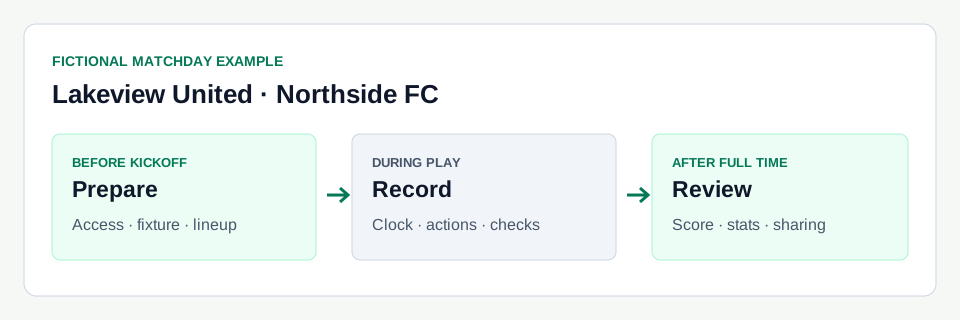
Step 1
Confirm the essentials
- Check the assigned operator can sign in on the device they will use, with the correct team access.
- Confirm opponent, kickoff time and venue on the existing fixture. Check period lengths and the match’s tracking setup.
- Review the active roster, availability, jersey numbers, positions and goalkeeper options. Keep private availability details in staff tools.
Step 2
Use Matchday Edge on the web
Open Matchday Edge from the team workspace for the upcoming game. The current web layout has Match prep, Lineup and Team insights tabs. Use Match prep for fixture details and readiness, Lineup to review the proposed group, and Team insights for recorded context.
Suggested XI explanations and AI reviews are eligible-team/pilot features. A suggestion is not a saved starting lineup: an authorized coach reviews and explicitly saves the choice.
Step 3
Check the source of opponent information
Where opponent research is available, review the source links, dates and partial coverage notes. A state ranking is dated context, not a live or universal rating. Confirm the fixture and school/team identity instead of treating similar names as a match.
Step 4
At kickoff
- Open the live scoring workspace or Score app, select the intended view and save the reviewed starting group when required.
- Check connection, battery and score/clock state. Agree who will handle event entry and corrections.
- Share only the intended public match/team link with supporters. Start the match clock when play begins.