Web Field ModeScorers and team admins4 min read
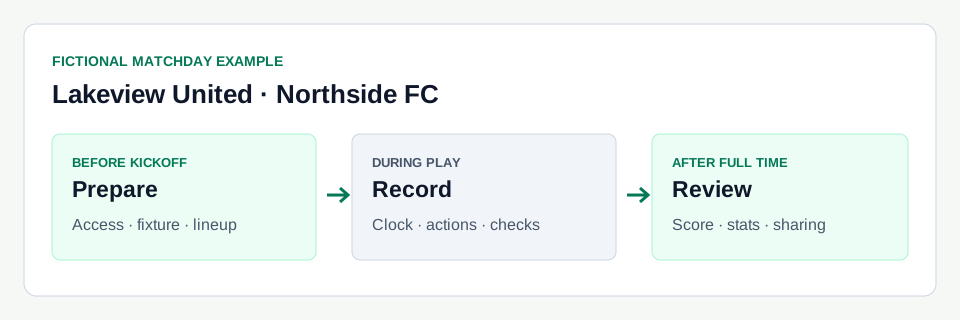
Step 1
Open the correct match
- Sign in with the account that has access to the team. Open Scoring from My Tools or go to the scoring dashboard.
- Choose the match and confirm the teams, date, venue and status.
- Choose Field in the web scoring workspace when it is available. Other choices include Full, Sideline and Quick.
Field Mode availability depends on the match and its tracking setup. A public spectator page does not grant permission to score.
Step 2
Review the starting group
- Use Set Lineup before kickoff. Review player availability and the goalkeeper for the side being tracked.
- Use Previous Starters only when that group still fits this match, then check it before saving.
- Save the lineup and confirm the field and bench reflect the players who are actually starting.
Step 3
Start and control play
- Use Start Match when play begins. Use Pause and Resume Match when the recorded clock needs to stop and restart.
- Use the match controls to move to halftime and the next period. Check the displayed period before restarting.
- Use the configured period lengths for this competition; do not assume every game has the same duration.
Step 4
Record, then check
- Use the web Field Mode player actions or switch to Full Control for explicit event fields. The action guide explains the web gestures.
- Check the team, player, score and timeline after important events.
- At full time, confirm the score and any extra-time or shootout result before completing the match.
These are web steps. The native Score app uses its own player menus and scoring preferences; do not assume the same gesture has the same result on both platforms.